
History, bookmarks and macros
phpPgAdmin keeps three kinds of saved SQL for you: the query history (every statement you run), bookmarks (queries saved under a label, per database, private or shared) and macros (queries bound to a shortcut key). All three live in phpPgAdmin's own storage (the SQLite file under storage/), not in the PostgreSQL server, and belong to the role you signed in as on that server.
| Kept per | Where you see it | Who sees it | |
|---|---|---|---|
| Query history | Role and server | The console | You |
| Bookmarks | Role, server and database | SQL tab's Bookmarked SQL query card, the console's Bookmarks card | You, or every role on the server when shared |
| Macros | Role and server (every database) | SQL tab's Macros menu, shortcut keys | You |
For phpMyAdmin users
phpMyAdmin keeps bookmarks and history in its configuration storage database (pma__bookmark, pma__history). phpPgAdmin needs no such database or tables in PostgreSQL; it uses its own SQLite file. Saved items follow the server's host and port and the role name, so signing in as another role shows other items, and a copy of phpPgAdmin on another machine starts empty.
Query history
Every statement sent to the server through the query runner is recorded with its database, the time it started, how long it took, the rows it returned or changed, and whether it failed. That includes the SQL tab, the Browse and Search tabs (each page and each re-sort of the grid is a new entry), the database search Browse links, macros and the console. Saves from the grid's inline editing and from the insert/edit form are not recorded.
The console shows the newest 50 entries; see Console → History for how to run, edit, explain or bookmark one.
History length
Settings → SQL queries → Query history length sets how many entries are kept, from 1 to 500 (the default and the maximum). When a new statement is recorded, the oldest entries beyond the limit are deleted.
Shortening the history deletes entries
Lowering the setting does not hide entries: at the next statement that runs, everything older than the newest N is removed for good. Raising it again does not bring them back.
Clearing the console
The console's Clear button only empties the console's list, as in phpMyAdmin; the stored history is kept (see Console → History). Entries are deleted only by the history length limit; there is no way to delete a single entry.
Bookmarks
A bookmark is a query saved under a label for one database.
Bookmark a query
There are three places to save one:
From the query box. On the SQL tab of a database, schema or table, type a label in Bookmark this SQL query: before you click Go. Two more boxes appear:

| Field | What it does |
|---|---|
| Bookmark this SQL query: | The label. Labels do not have to be unique. |
| Let every user access this bookmark | Saves it as shared: every role on the server sees it. |
| Replace existing bookmark of same name | First deletes the bookmarks with this label in this database that are yours or shared. |
The bookmark is saved when you click Go, even if the query then fails.
From a result. Under every row-returning result on the SQL and Browse tabs, the Bookmark this SQL query card has Label:, Let every user access this bookmark and a Bookmark this SQL query button. It saves the statement as it was run (after bind parameters were filled in), not the box's text.
From the console. Bookmarks → Add in the console, or Bookmark on a history entry, with a label, a target database and Share this bookmark.
Run, view or delete a bookmark
On the SQL tab of a database (and its schemas and tables), the Bookmarked SQL query card lists the bookmarks of that database, yours and the shared ones, which read (shared). It appears once the database has at least one.

- Pick the bookmark in Bookmark:.
- Choose what Go does:
- Submit puts the query in the box and runs it.
- View only puts it in the box without running it.
- Delete deletes the bookmark.
- Click Go.
The console's Bookmarks card lists the bookmarks of every database and runs each in its own database.
Shared bookmarks belong to everybody
A shared bookmark has no owner. Every role that signs in to the server can run it and delete it, and Replace existing bookmark of same name replaces it. A bookmark cannot be changed from shared to private or edited in place: delete it and save it again.
Bookmark variables
A bookmark can hold phpMyAdmin's variables: [VARIABLE1], [VARIABLE2] and so on ([VARIABLE] is the first one too). When such a bookmark is picked, the card shows Variables with a Variable 1:, Variable 2:… field for each placeholder, and Submit runs the bookmark with the values in their place:
SELECT id, name FROM public.authors WHERE name = '[VARIABLE1]' /* OR id = [VARIABLE2] */with Imam Bukhari and 1 runs SELECT id, name FROM public.authors WHERE name = 'Imam Bukhari' OR id = 1.
- A comment holding a placeholder is taken away around it, as in phpMyAdmin, so the bookmark can be written to run unchanged (with the comment) from the console, and with the clause once values are given.
- A value is put in as it is typed, with its single quotes doubled (
O'BrienbecomesO''Brien), for a placeholder inside a string literal. Outside quotes it is SQL: give numbers there only. - A field left empty puts nothing in. One field is shown per placeholder, so a placeholder written twice gets two fields; the first fills both.
- View only shows the bookmark as saved, placeholders included; the console's Bookmarks card runs it without substitution.
Macros
A macro is a statement with a name and, optionally, a shortcut key, after pgAdmin's query tool macros. Macros are yours across every database of the server; one runs in the database whose SQL tab is open.
The Macros menu
Macros, among the buttons under the SQL editor, opens a menu:
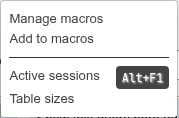
| Item | What it does |
|---|---|
| Manage macros | Opens the dialog below. |
| Add to macros | Saves the query box's text as a new macro named Macro 1, Macro 2… (the next free number), without a key. |
| A macro | Runs it. Hover for its SQL. |
Running a macro does not change the query box. It uses the page's current Delimiter, Run as one transaction and Rollback when finished options, and it does not ask for confirmation, even for a DROP.
Manage macros
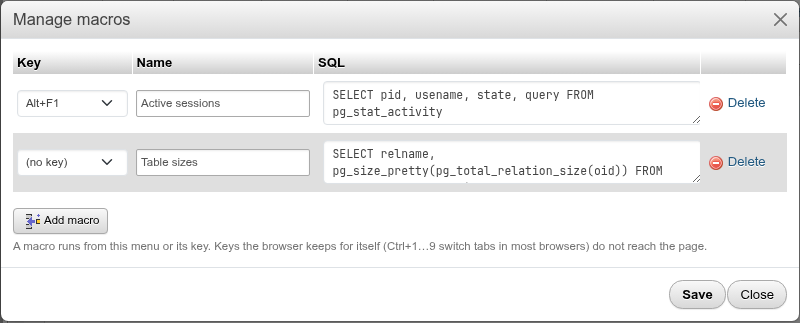
- Open Macros → Manage macros.
- Edit the rows: Key (or (no key)), Name, SQL. Add macro adds a row that starts with the query box's text; Delete removes a row.
- Click Save. Close throws the changes away.
Each macro needs a name and a statement; names must be unique (ignoring case) and a key can be bound to one macro only. A key already used by another row is greyed out in the list.
Shortcut keys
The keys are pgAdmin's fixed set: Ctrl+1…9, Ctrl+0 and Alt+F1…F12. A key runs its macro anywhere on the SQL tab, also while the editor has the focus. They do nothing on other pages.
Keys the browser or desktop keeps
Most browsers use Ctrl+1…9 to switch tabs, and many desktops close the window on Alt+F4; those keys never reach the page. Ctrl+0 (zoom reset) and some Alt+F keys may be taken too. Pick Alt+F1…F3 or F5…F12 first, and run the others from the menu.