
Console
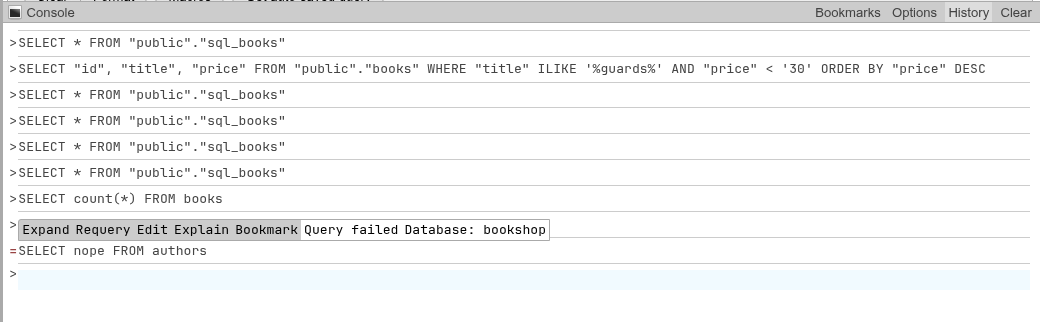
The console is the bar fixed to the bottom of every page, as in phpMyAdmin. It unfolds into a small query box with your query history above it, and has cards for its options and your bookmarks. A query typed in the console runs on the SQL tab of the database you are in.
Open, close and resize
- Click Console at the left of the bar to open or close it. The browser remembers whether it was open for the next page you load.
- Drag the open toolbar (anywhere but its buttons) up or down to change the height. A drag below 32 px folds the console. The console never covers the top 25 px of the window.
The height is saved in your settings as Console height (console.height, 92 px by default) under Settings → Features → Console, where you can also type it. Like your other settings it follows the role and server, not the browser.
Run a query
- Open the console and click in the box at the bottom (after
>). - Type the SQL. Enter starts a new line.
- Press Ctrl+Enter (or Enter with Execute queries on Enter on).
The console does not show results itself. It opens the database-level SQL tab of the database the current page belongs to — /db/bookshop/sql from any page inside bookshop, also from a table — and runs the query there, with the results in the usual result boxes. Outside a database (server pages) it uses the server-level SQL tab, which runs in the database you signed in to.
Default options
A query from the console runs with the SQL tab's default options: each statement commits on its own. With Confirm DROP queries on, a DROP, ALTER TABLE … DROP, DELETE, TRUNCATE or an UPDATE without WHERE asks Do you really want to execute "…"? first, as phpMyAdmin's console does; Cancel leaves you on the page with the query still in the box. Text without a letter in it is ignored.
INFO
The console query runs against the database of the page, not the schema or table. Qualify names (inventory.stock) when the table is not in your search_path.
History
History shows or hides your query history: the newest 50 statements you ran on this server, in every database, oldest at the top and newest directly above the box. A failed statement has a red = in front of it instead of >.
Click an entry to expand it to its full text or collapse it to one line. Hover over it for its actions:
| Action | What it does |
|---|---|
| Expand / Collapse | Shows the whole statement or its first line. |
| Requery | Runs it again on the SQL tab of the database it ran in. |
| Edit | Copies it into the console's box. |
| Explain | For SELECT, WITH, VALUES and TABLE statements: runs it with EXPLAIN in front, in its database. An EXPLAIN statement is run as it is. |
| Bookmark | Opens Add bookmark with the statement and its database filled in. |
The hover also shows Query failed for an error, Database: and Queried time: (in your browser's time zone).
The list is not live
The history list is loaded when you first show it and again after a query runs from the console. A query run from the SQL tab's Go, the Browse grid or a macro does not appear until you run something from the console or reload the page.
Clear empties the list, as phpMyAdmin's does: the entries are hidden, not deleted, and the stored history is kept. Queries you run afterwards appear as usual. Turning History off and on again brings the hidden entries back, except the failed ones; reloading the page brings back all.
Download the history
Download in the console's toolbar saves the history list as history.sql, as the classic phpPgAdmin's history window does: the statements oldest first, each ending with ; and preceded by a comment with the time (UTC), the database and (failed) for one that failed:
-- phpPgAdmin SQL history, 2026-10-30T10:02:50.430Z

-- 2026-10-30T09:42:13Z bookshop
SELECT * FROM "public"."authors";
It writes the list as loaded (the newest 50 statements, loading them first if the history has not been shown), including entries Clear hid. The file is built in the browser.
Debug SQL
Debug SQL opens phpMyAdmin's Debug SQL card: the statements you ran since the page was loaded (from the SQL tab, the console, Browse and the other grids, as recorded in the history), each with Time taken: in milliseconds, and a summary line such as 3 statements run in 4.2 ms since this page was loaded. Execution order lists them as they ran, Time taken slowest first, and Count groups the runs of the same statement in the same database with their Count: and their time together. Refresh reloads the list; each entry has Requery.
Only your own statements
phpMyAdmin's Debug SQL (with $cfg['DBG']['sql']) lists every query the page's requests sent, phpMyAdmin's own included. phpPgAdmin records the statements you run, with the time the server took for them, not the catalog queries the pages make. Reloading the page starts the list again.
Options
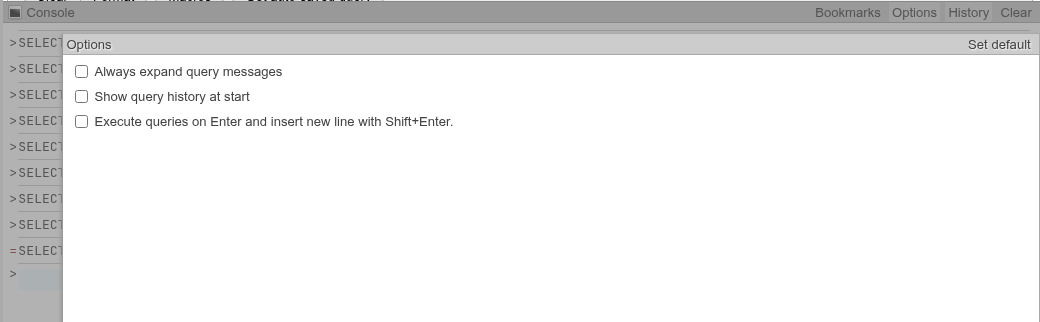
Options opens the console's settings, the same ones as Settings → Features → Console. A change is saved at once for your role.
| Option | What it does |
|---|---|
| Always expand query messages | Shows every history entry and bookmark in full instead of its first line. |
| Show query history at start | Shows the history as soon as a page with the console opens. Off by default: the console then starts with only the box. |
| Execute queries on Enter and insert new line with Shift+Enter. | Swaps the keys: Enter runs, Shift+Enter starts a new line. Ctrl+Enter runs either way. The hint above the box follows it (Press Enter to execute query). |
| Set default | Turns all three off. It does not reset the height. |
Click Options at the top of the card, or outside it, to close it.
Bookmarks
Bookmarks opens a card with all your bookmarks on this server, of every database: yours with a blue label, shared ones with a green label.
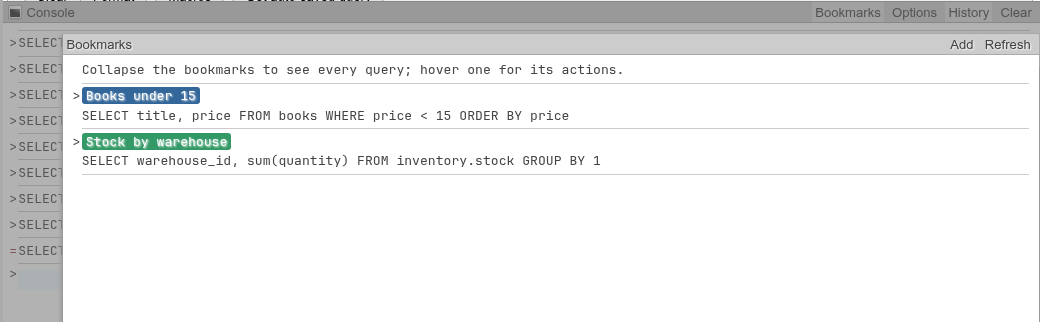
- Hover over a bookmark for Expand/Collapse, Requery (runs it in the bookmark's database), Edit (copies it into the console's box) and Delete.
- Refresh loads the list again, for example after you saved one on the SQL tab.
- Add opens Add bookmark with the console box's text:
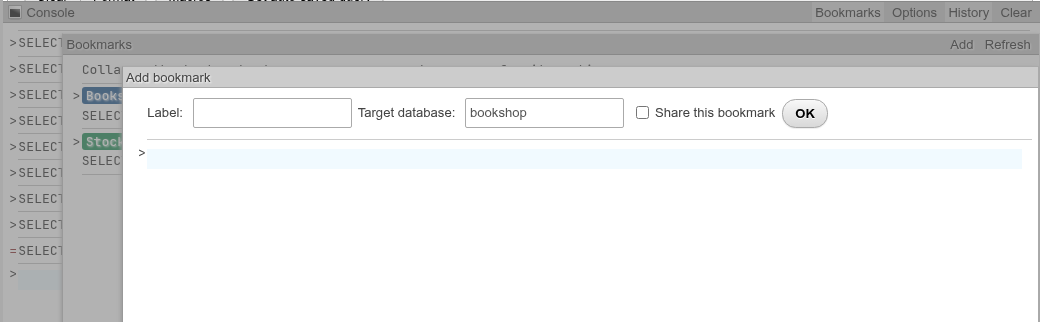
- Type a Label.
- Check the Target database; it starts as the database of the current page. Any name is accepted, also one that does not exist.
- Tick Share this bookmark to let every role on the server use (and delete) it.
- Edit the statement in the box if needed and click OK.
A bookmark needs a label, a database and a statement; OK does nothing while one is empty.