
Signing in
You sign in to phpPgAdmin with a PostgreSQL role and its password, as you sign in to phpMyAdmin with a MySQL account. This page covers the login form, saved servers, the Advanced section, the language picker, the errors you can get, and how sessions and passwords are handled.
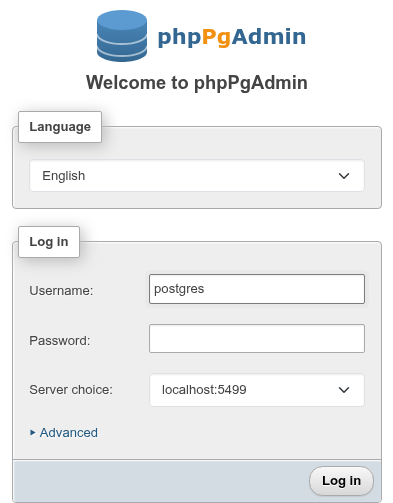
Logging in
- Open phpPgAdmin. Any address works: if you are not signed in, the login page appears in its place, and after signing in you land on the page you asked for.
- Enter a PostgreSQL role in Username: and its password in Password:. Leave the password empty if the server lets the role in without one (
trustorpeerauthentication inpg_hba.conf). - Pick the server in Server choice:, or open Advanced to enter another one.
- Click Log in. The button stays disabled while the connection is being made.
phpPgAdmin then connects as that role. There are no separate phpPgAdmin accounts: what you can see and change is what PostgreSQL allows the role, so a role without CREATEDB gets an error from PostgreSQL when it creates a database, and a non-superuser sees no other users' query text on the Status pages.
The role needs the LOGIN attribute and the CONNECT privilege on at least one of the databases a login tries (see Maintenance database).
Saved servers
Every server a login succeeds against is saved in phpPgAdmin's storage and offered under Server choice: next time, the most recently used first, with the role that used it last filled in as the username. Choosing another saved server fills in its role the same way, unless you have typed a username yourself, which is kept. Other server… at the end of the list resets the Advanced fields to the configured default server.
Server choice: only appears once at least one server has been saved. Before that, the form signs in to the default server, or to what you enter under Advanced.
A saved server is identified by its host and port. Signing in to it again with a different SSL mode or maintenance database updates the saved entry. A failed login saves nothing.
Saved servers are shared and visible before sign-in
Saved servers belong to the installation, not to a person. Everyone who opens the login page sees the same list, including the last username used on each server, and the list is also available without signing in at /api/auth/servers. No passwords are saved.
Same server, different entries
localhost:5432 and 127.0.0.1:5432 are two saved servers, and your settings, history and bookmarks are kept separately for each, because they are stored by host and port as typed.
Renaming and removing saved servers
Changing the list needs a login, so that nobody can change it from the login page alone.
- On the login page, the pencil (Rename) and the trash (Remove) next to Server choice: act on the server selected. The dialog that opens logs you in to that server with the username and password in the form, then renames it (an empty name takes the name away) or removes it, and goes on into phpPgAdmin. When the login fails, its error shows in the dialog and the list is left as it was.
- Once signed in, Import/Export servers in the General settings card of the home page lists the saved servers with their SSL mode and last username, and each has Rename and Remove (which asks first).
A name shows in the list as "Production (db1.internal:5432)".
Connection options
Connection options beside Rename in the same dialog sets pgAdmin's connection options of a saved server (its server dialog's Connection, Parameters and Advanced fields). They need a login, and they are never sent to the login page.
| Field | For | What it does |
|---|---|---|
| Service | everyone | libpq's service: a section of the web server's pg_service.conf (PGSERVICE for the client programs). |
| Application name | everyone | application_name instead of phpPgAdmin, as pg_stat_activity shows it. |
| Client certificate, Client certificate key, Root certificate, Certificate revocation list | everyone | libpq's sslcert, sslkey, sslrootcert, sslcrl. Each is picked from the files directly in the directory PGADMIN_SSL_DIRECTORY names (Configuration): a name, never a path, and a symbolic link out of the directory is not offered. Without that setting the lists are empty and saving a file name is refused. Ignored for a Unix socket. |
| Role | your role | The role to become after connecting, sent as the startup option -c role=… (what SET ROLE does). On the server you are signed in to, a role yours cannot become is refused (There is no role "x" on this server.). |
| Post-connection SQL | your role | Statements run on every new connection, the query tool session's included. If they fail, the request fails with The post-connection SQL failed: …. |
The options for everyone apply to whoever signs in to the server, so only a signed-in user can change them. The role and the post-connection SQL are kept under your username and used only when that role signs in: another role cannot make your connections run its SQL. They apply to phpPgAdmin's own connections, the query tool session, the debugger and the client programs (pg_dump, pg_restore, psql get the service, application name, SSL files and role through PG* variables); the post-connection SQL does not run in the client programs or the debugger. Your session takes the change at once; other sessions from their next sign-in. A login through the Advanced fields, rather than by picking the saved server, connects without them.
Connection options are not part of the exported server list.
Importing and exporting the server list
The same Import/Export servers dialog exports the list as servers.json and imports one, in pgAdmin's server import format (pgAdmin's Tools › Import/Export Servers):
{
    "Servers": {
        "1": {
            "Name": "Production",
            "Group": "Servers",
            "Host": "db1.internal",
            "Port": 5432,
            "MaintenanceDB": "postgres",
            "Username": "app",
            "SSLMode": "require"
        }
    }
}- Export writes every saved server; a server without a name gets
host:portas itsName, and one without a maintenance databasepostgres. No password is ever written. - Import adds the servers that are new and updates the name, SSL mode, maintenance database and username of a server already saved at the same host and port. A file from pgAdmin 7 or newer, which keeps the SSL mode under
"ConnectionParameters": {"sslmode": …}, is read as well.Groupand pgAdmin's other fields are ignored: phpPgAdmin has one list. The whole file is checked first, so a server without a host or with a bad port stops the import with nothing saved ("Server "2" of the list cannot be imported: A server needs a host."). - Imported servers are offered after the ones logins have used; they move up once you log in to them.
If a server is removed while the login page is open and you log in with it selected, the form says "That saved server no longer exists." Reload the page.
Advanced
Click Advanced to enter a server by hand. The fields start with the selected server's values.
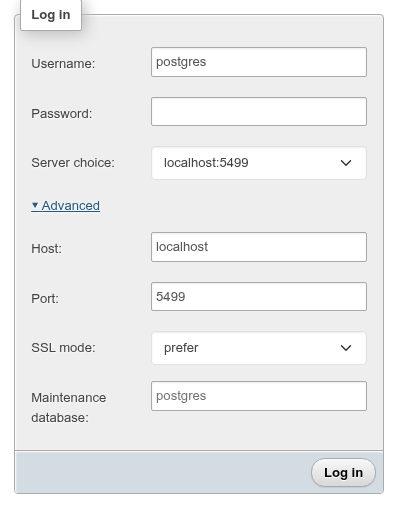
| Field | What to enter |
|---|---|
| Host: | A host name, an IP address, or the directory of the server's Unix socket, such as /var/run/postgresql. With a socket directory, the server home page says "via UNIX socket". |
| Port: | The TCP port, 1 to 65535; for a socket, the number in the socket file's name (.s.PGSQL.5432). |
| SSL mode: | libpq's sslmode: disable, allow, prefer (default), require, verify-ca, verify-full. Ignored for a Unix socket. The home page's Server connection: line shows whether SSL is used. |
| Maintenance database: | The database to connect to first. Empty means postgres, then template1, then the database named after the role, whichever lets the role in first. The databases are listed from this connection. |
If the fields still match the selected saved server, the login uses that saved server. If you changed any of them, the login goes to the server they describe, and that server is saved on success.
A maintenance database that does not exist
If the maintenance database you enter does not exist, the login falls back to postgres, template1 and the role's database, and succeeds if one of them lets the role in. The name you entered is still saved with the server.
Language
The Language card above the form switches the interface language at once; English and Arabic (right-to-left) are available. The choice is kept in your browser session and in a pga_lang cookie for a year, so the login page opens in the same language next time.
Once you sign in, the language your role chose last time (on this server) takes over. Changing the language while signed in, on the server home page, saves it for the role. See Language and right-to-left.
When the login fails
The error appears in a red box above the form. Except for an empty username, it is the message libpq or the server returned, so it names the exact cause:

| Situation | Message (as observed) |
|---|---|
| No username | A username is required. |
| Wrong password | connection to server at "localhost" (::1), port 5499 failed: FATAL: password authentication failed for user "…" |
| Unknown role | … FATAL: role "…" does not exist |
Role without LOGIN | … FATAL: role "…" is not permitted to log in |
| Nothing listening on that port | … Connection refused. Is the server running on that host and accepting TCP/IP connections? (once per address the host name resolves to) |
| Unknown host name | could not translate host name "…" to address: Name or service not known |
| Host that does not answer | connection to server at "…", port … failed: timeout expired, after PGADMIN_DB_TIMEOUT seconds (10 by default) |
| Wrong socket directory | connection to server on socket "/run/postgresql/.s.PGSQL.5499" failed: No such file or directory |
require against a server without SSL | … server does not support SSL, but SSL was required |
| Empty host | A server needs a host. |
| Storage not writable | Internal Server Error (see Writable storage) |
Connection failures other than rejected credentials (unreachable servers, timeouts) are also written to the PHP error log as phpPgAdmin: cannot connect to host:port: ….
Password authentication and pg_hba.conf
"password authentication failed" can also mean the client address matched a pg_hba.conf line with a different method than you expected. The web server connects from its own address, not from your browser's: localhost may resolve to ::1 first, as in the messages above.
Logging out
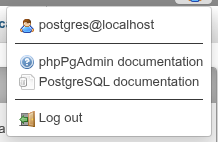
Use Log out in the navigation panel's header (the door icon next to Home), or in the user menu at the top end corner of the page. The session forgets the role, its password and the server, the session id is replaced, and the login page appears. Your language choice stays.
Changing your password
Change password in the General settings card of the home page opens phpMyAdmin's change password dialog for the role you are signed in as: No Password, or a new password entered twice; Password Hashing (SCRAM-SHA-256 or MD5, the server's password_encryption first); and Generate for a random one. It runs ALTER ROLE CURRENT_USER PASSWORD with the hashed form, computed by phpPgAdmin, so the password itself does not reach the server's log (a password with characters outside printable ASCII is sent for the server to hash). The session goes on with the new password.
Passwords and sessions
- The password is kept in the PHP session while you are signed in, on the web server, so that each request can open connections as your role. It is never written to phpPgAdmin's storage database, and it is passed to
pg_dump,psqlandpg_restorein thePGPASSWORDenvironment variable rather than on their command line. Logging out removes it from the session. - Sessions are PHP's own. phpPgAdmin uses PHP's session cookie (
PHPSESSID) and PHP's session storage, with PHP's settings. It sets no lifetime of its own: a session ends when the browser is closed (the cookie has no expiry) or when PHP's session garbage collection removes it aftersession.gc_maxlifetimeseconds of inactivity (1440, 24 minutes, by default). - A new session id at login and logout, so a session id obtained before signing in cannot be used to take over the signed-in session.
- Several tabs share one session. Signing in to another server in one tab signs every tab of that browser in to it.
Protect the session store
Because sessions hold passwords, anyone who can read PHP's session files can read them. Keep session.save_path private to the PHP user. The PHPSESSID cookie is HttpOnly and SameSite=Lax, and Secure over HTTPS (behind a proxy that ends HTTPS, set session.cookie_secure = 1). See PHP settings that matter.
When the session expires
phpPgAdmin notices an expired session at the next request. The page you are on stays open until then; the next action that loads data brings up the login form, with Your session has expired. Please log in again. above it, at the same address. After signing in you are back on the page you were on, as when you open a bookmarked address while signed out. Changes you had not yet sent from a form on that page are lost.