
Finding your way around
Every page of phpPgAdmin has the same frame as phpMyAdmin: the navigation panel on one side, the breadcrumb and the tab bar of the current level across the top, the page below them, and the console bar at the bottom. This page describes each part, the dialogs and messages shared by all pages, the keyboard shortcuts, the languages, and the server home page.
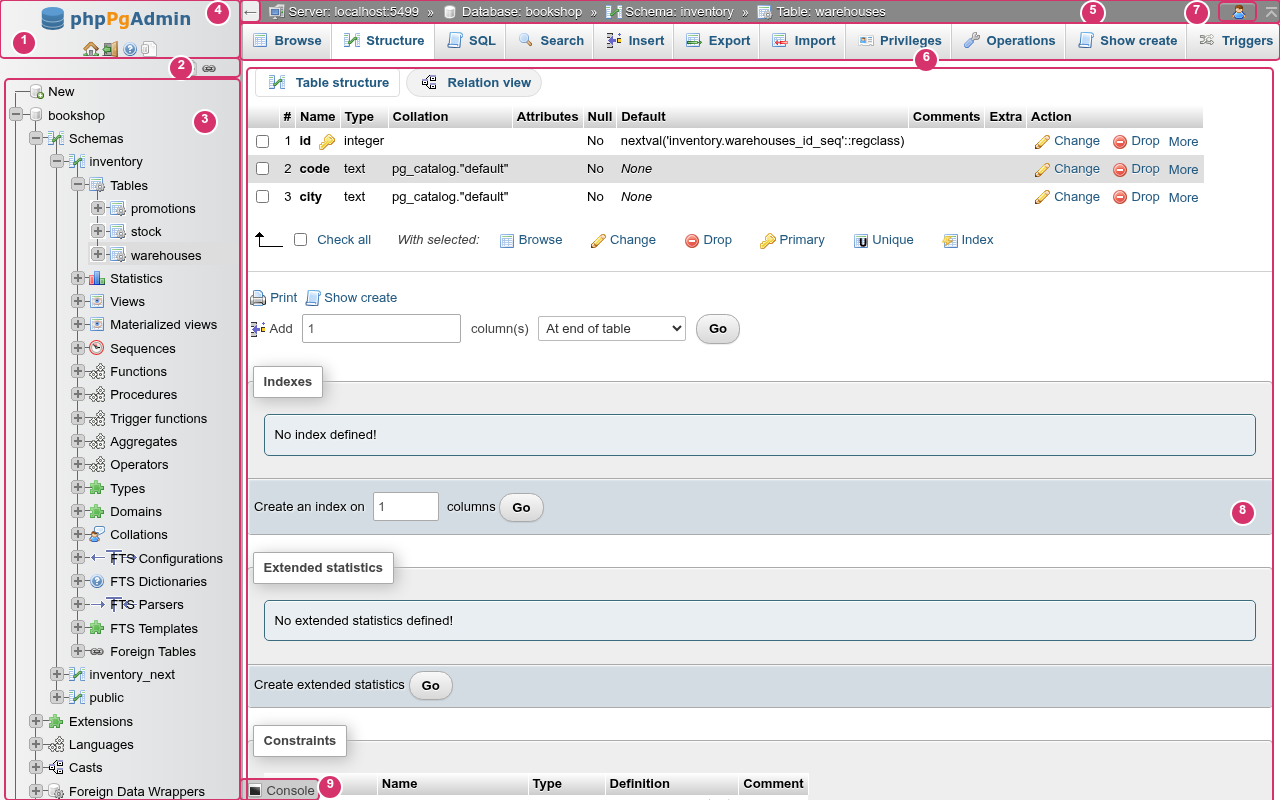
| # | Part | Described in |
|---|---|---|
| 1 | Navigation panel header | Panel header |
| 2 | Recent and Favorites, tree controls | Recent and Favorites, Collapse all and Link with main panel |
| 3 | Navigation tree | The navigation tree |
| 4 | Collapse arrow | Resizing and collapsing the panel |
| 5 | Breadcrumb | Breadcrumb |
| 6 | Tab bar | Tab bars |
| 7 | User menu | User menu and page links |
| 8 | The page | The rest of this documentation |
| 9 | Console | Console |
The navigation panel
Panel header
Under the logo (which links to the server home page) are four icons:
| Icon | Does |
|---|---|
| Home | Opens the server home page. |
| Log out | Signs you out. See Logging out. |
| phpPgAdmin documentation | Opens this documentation in a new tab. |
| PostgreSQL documentation | Opens postgresql.org/docs in a new tab. |
Recent and Favorites
Above the tree are phpMyAdmin's two quick-access buttons. Point at one to open its list; click an entry to open that table (or view) on its Structure tab.
| Button | Lists |
|---|---|
| Recent | The tables whose pages you opened last, newest first: opening any tab of a table, view or materialized view puts it at the top. Up to 10. |
| Favorites | The tables you starred, newest first. The star in front of each entry removes it. Up to 10. |
Star a table with the star icon in the Action column of a schema's Structure page; click the filled star to remove it again. With the list full, starring one more answers Favorite List is full!.
Entries are named "database"."schema"."table". Both lists belong to your role on this server: they are stored by phpPgAdmin (not in the browser), so they are the same after a reload, in another browser and after signing in again. A table that was dropped or renamed stays in the lists until it drops off the end; its link then shows an error. The lengths are the Recently used tables and Favorite tables settings on Settings › Navigation panel; setting one to 0 hides its button.
The navigation tree
The tree lists the databases of the server, then everything inside each one, in the same hierarchy as the pages: database, schema, then the objects of the schema.
- Click the + box (the expander) to open an item and − to close it. Clicking the name or the icon opens the item's page instead.
- The first item, New, opens the server's Databases tab, where you create a database.
- Items are loaded when you open them, so the tree stays fast on large servers. While a list loads it shows Loading…; if loading fails, the error is shown in red in the tree.
- After you create, rename or drop an object, the lists reload.
What each level holds:
| Item | Opens to |
|---|---|
| Database | Schemas, Extensions, Languages, Casts, Foreign Data Wrappers, Event Triggers, Publications, Subscriptions |
| Schema | Tables, Statistics (extended statistics), Views, Materialized views, Sequences, Functions, Procedures, Trigger functions, Aggregates, Operators, Types, Domains, Collations, FTS Configurations, FTS Dictionaries, FTS Parsers, FTS Templates, Foreign Tables |
| Table | Columns, Indexes, Primary key, Unique constraints, Foreign keys, Check constraints, Exclusion constraints, Triggers, Rules, Policies, Partitions |
| View | Triggers, Rules |
| Foreign data wrapper | Foreign Servers, which open to User Mappings |
A group (such as Tables or Functions) only appears when the server version has that kind of object; groups are not hidden when they are empty.
Tree labels are not translated
The names of the groups (Schemas, Tables, FTS Configurations…) come from the server and stay in English when the interface runs in another language.
Long lists: fast filter and pages
Two helpers appear on long lists, as in phpMyAdmin:
- Fast filter. A Type to filter these box appears above a list once it has at least 30 items. Typing hides the items whose name does not contain the text (case does not matter); X clears it. It filters only the list it sits in, and only names already loaded.
- Pages. A list with more than 50 items (100 for the databases) is split into pages, with a page number select and << / < / > / >> links for the first, previous, next and last page.
The three numbers are settings: Maximum items on first level, Maximum items in branch and Minimum number of items to display the filter box, on Settings › Navigation panel.
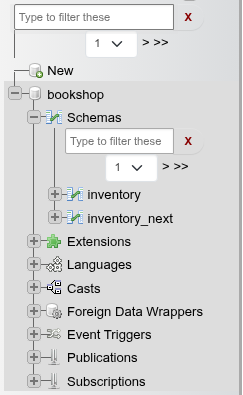
The screenshot was taken with the limits set to 1 database per page, 2 items per branch and a filter from 2 items, to show both helpers on the small demo server.
Current item and remembered state
When Link with main panel is on (the default), the tree follows the page you are on: it opens the database, schema and group on the way to the page's object, and highlights the object. Following a link from a page, the breadcrumb or the address bar does the same.
What you opened in the tree is remembered while the browser tab stays open, across reloads and page changes, as phpMyAdmin does. It is kept per tab (in the browser's session storage), so a new tab starts with a closed tree, and it is forgotten when you sign in as another role or to another server.
Collapse all and Link with main panel
The two icons above the tree:
| Icon | Does |
|---|---|
| Collapse all | Closes every open item. |
| Link with main panel / Unlink from main panel | Switches whether the tree follows the page. Unlinked, the tree no longer opens or highlights anything by itself. The choice is kept for the browser tab. |
Resizing and collapsing the panel
- Drag the panel's edge to make it wider or narrower.
- Click the arrow at the top of the page, next to the breadcrumb, to collapse the panel completely; click it again to bring it back at the width it had.
The width is not remembered
Unlike phpMyAdmin, the panel's width and its collapsed state reset to the default (240 pixels, open) when the page is reloaded.
Breadcrumb
The bar at the top names where you are: Server: host:port, then Database:, Schema:, and Table:, View: or Materialized view: as the page goes deeper. Each entry links to that level's first page. Under the menu bar, the page's own title usually repeats the object.

Tab bars
The tabs under the breadcrumb change with the level, and the tab of the page you are on is highlighted.
| Level | Tabs |
|---|---|
| Server | Databases, SQL, Status, Roles, Tablespaces, Export, Import, Settings, Replication, Variables |
| Database | Structure, SQL, Search, Query, Export, Import, Operations, Privileges, Objects, Schema diff, Designer, Show create |
| Schema | Structure, SQL, Export, Import, Operations, Privileges, Routines, Sequences, Types, Foreign tables |
| Table | Browse, Structure, SQL, Search, Insert, Export, Import, Privileges, Operations, Show create, Triggers |
| View | Browse, Structure, SQL, Search, Insert, Export, Privileges, Operations, Show create, Triggers. See Views. |
| Materialized view | Browse, Structure, SQL, Search, Insert, Export, Privileges, Operations, Show create. See Views. |
The server's Server logs are a page of the Status tab. The server home page (/) is not a tab, so no tab is highlighted there.
On a narrow window the tabs fold into a menu button (three lines) at the start of the bar.
User menu and page links
- User menu (the person icon at the top end corner): shows the role and host you are signed in as (
postgres@localhost), the two documentation links, and Log out. - Scroll to top (the arrow next to it): goes back to the top of a long page.
- Open new phpPgAdmin window (the small window icon at the bottom end corner of the page): opens the current page in a new browser tab. Tabs share your sign-in.
Messages
Results and errors of what you do appear in a box at the top of the page, as phpMyAdmin's floating notifications:
- a plain yellow note for information,
- a green, yellow or red alert for success, warnings and errors.
Information and success messages disappear after five seconds; errors stay until you click them or the next message replaces them. Clicking any message dismisses it. Only one message is shown at a time.
Errors from PostgreSQL are shown with the server's own message, followed by its DETAIL: and HINT: lines when it sent them, as psql prints them. For example, a role without CREATEROLE that tries to add a role sees permission denied to create role and DETAIL: Only roles with the CREATEROLE attribute may create roles.
Controls that are not built yet
Some controls are drawn and look like working controls, as phpMyAdmin would show them, but their feature is not built yet. Using one shows this note instead of doing anything:

An example is Export in the results grid's "With selected:" bar. Known limitations lists them all.
Same note for an empty selection
In the results grid, a "With selected:" action clicked with no row checked also answers Not available yet., even though the action itself works once rows are checked.
Dialogs
Preview SQL
Forms that create or change an object have a Preview SQL button. It shows the statements the form would run, without running them, in a dialog with Close. Some dialogs show the preview with an OK button that then runs the statements.
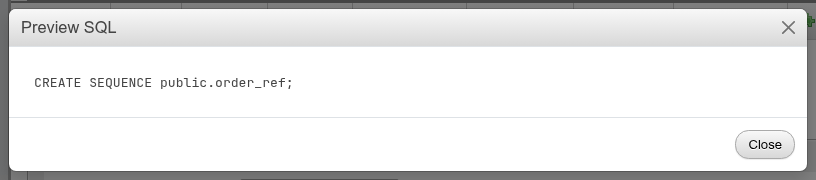
Confirmations
Dropping, emptying or deleting asks first, in phpMyAdmin's words: Do you really want to execute "…"? with the statement, OK and Cancel. Some dialogs add a warning line or options such as CASCADE.
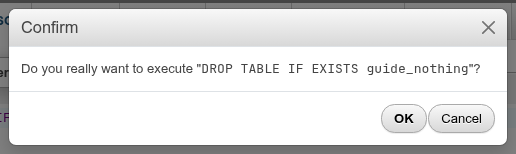
The setting Confirm DROP queries (Settings › Features) controls the question for statements you type on the SQL tab or in the console: DROP, ALTER TABLE … DROP, DELETE, TRUNCATE and UPDATE without WHERE. The confirmations of the Drop buttons and links on the other pages always appear.
Press Escape or click outside a dialog to close it. When dialogs are stacked (a preview opened from a dialog), Escape closes the top one.
Show create, dependencies and statistics
- Show create (a tab for databases, tables, views and materialized views, and a link on structure pages) shows the object's DDL, read-only, with Copy to clipboard. Tables and views also list their Dependencies (what the object needs) and Dependents (what needs it), each with its type and PostgreSQL's dependency kind under Restriction (normal, auto, ACL…). See Table operations and Views.
- Edit pages of functions, procedures and sequences have the same Dependencies and Dependents panels and a Statistics panel; databases show statistics and dependencies on their Show create page. See Functions and procedures and Sequences.
Keyboard shortcuts
| Keys | Where | Does |
|---|---|---|
| Ctrl+Enter (Cmd+Enter on macOS) | SQL editor, console | Runs the query. |
| Enter / Shift+Enter | Console, with "Execute queries on Enter" on | Runs the query / starts a new line. |
| Ctrl+Space | SQL editor | Opens autocompletion (it also opens as you type). |
| Tab / Shift+Tab | SQL editor | Indents / unindents. |
| Ctrl+Z, Ctrl+Shift+Z | SQL editor | Undo, redo. |
| Ctrl+0 … Ctrl+9, Alt+F1 … Alt+F12 | SQL tab | Runs the macro bound to the key. See History, bookmarks and macros. |
| Enter / Escape | Inline editing in the results grid, Variables page | Saves / cancels the edit. |
| Escape | Any dialog | Closes it. |
| +, -, 0, 1, Space, Ctrl+A, Escape | Designer | Zoom in, zoom out, reset zoom, fit, pan, select all, clear the selection. See Designer. |
Console
The Console bar at the bottom of every page opens a small query box with the query history and bookmarks, after phpMyAdmin's console. A query run from it opens on the SQL tab of the current database. See Console.
Language and right-to-left
Change the language on the server home page (Appearance settings › Language) or on the login page. The page switches at once, without a reload. English and Arabic are available; the Arabic translation covers every label.
The choice is stored in three places:
- your session, for the rest of the visit;
- a
pga_langcookie for one year, so the login page opens in it next time; - your role's preferences on that server, so it follows you to other browsers when you sign in. Signing in applies the role's saved language over the cookie's.
Reset on Settings › Manage your settings does not change the language, and the settings export does not include it.
In Arabic the whole layout is mirrored: the navigation panel moves to the right, the breadcrumb and tabs run right to left, and tables and forms are flipped. SQL, object names, host names and the language picker stay left-to-right.
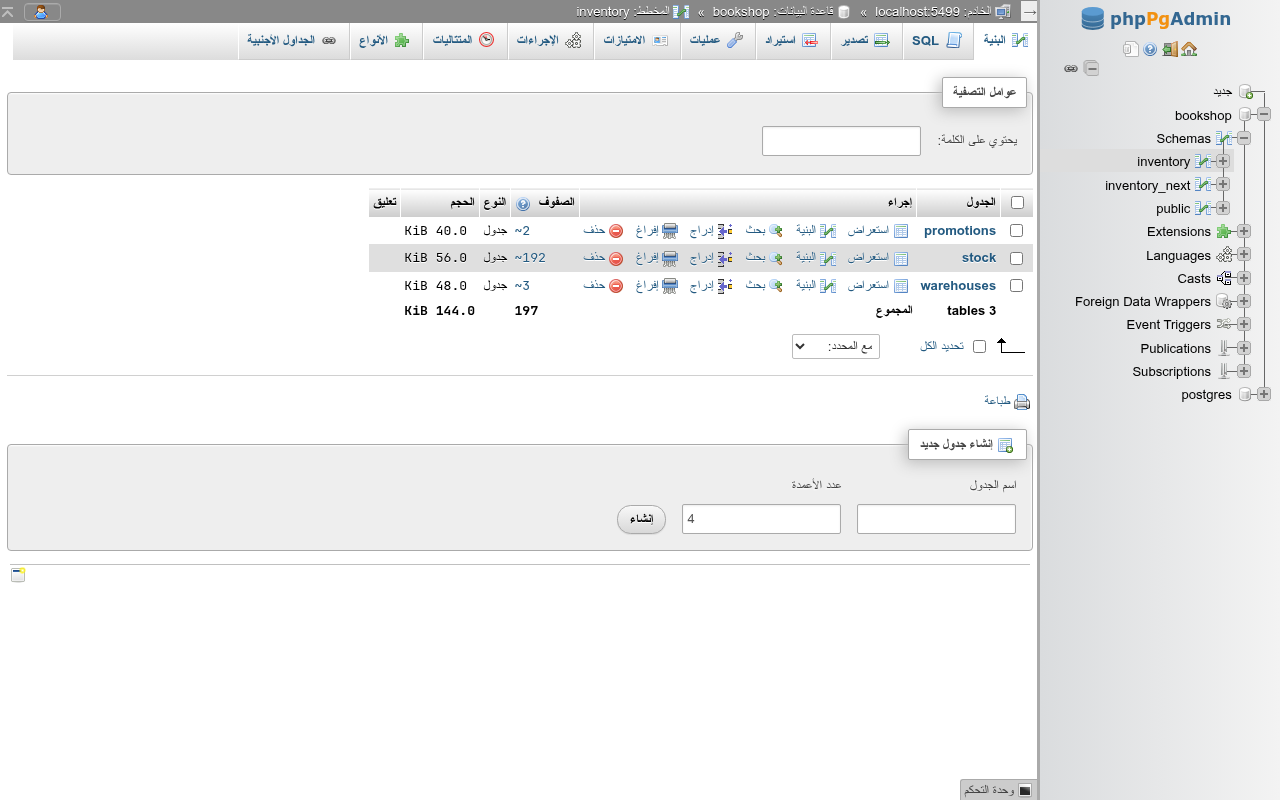
Mixed text in Arabic
Text that comes from the server rather than the translation files stays in English: the navigation tree's group names (Schemas, Tables…), units such as KiB, and PostgreSQL's messages.
The server home page
Home, the logo, and the Server: entry of the breadcrumb all lead to the server home page, phpMyAdmin's main page.
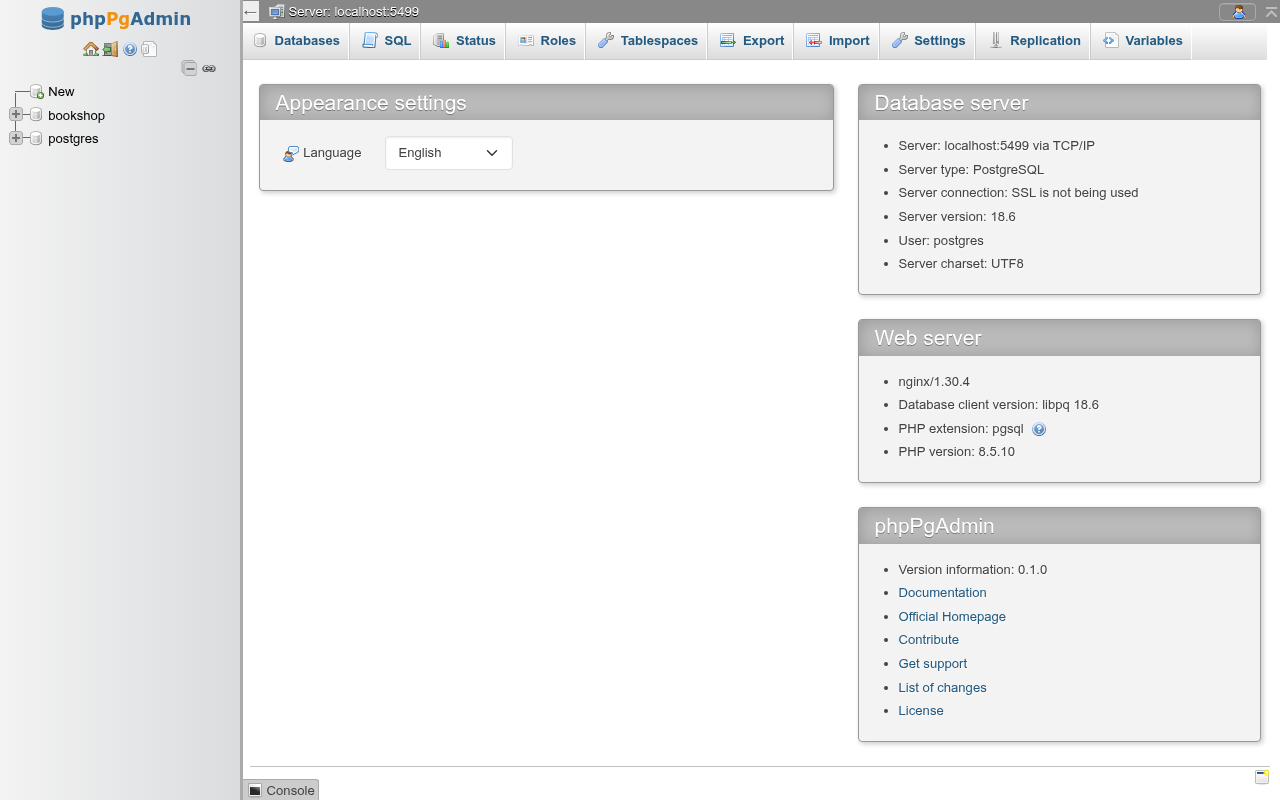
| Card | Shows |
|---|---|
| Appearance settings | Language: the language picker. There is no theme choice; phpPgAdmin has one theme. |
| Database server | Server: host:port and "via TCP/IP" or "via UNIX socket"; Server type: PostgreSQL; Server connection: whether SSL is used; Server version:; User: the role you are signed in as; Server charset: the server encoding. |
| Web server | The web server software (as PHP reports it); Database client version: the libpq version; PHP extension: pgsql, with a link to its manual; PHP version:. |
| phpPgAdmin | Version information:, and links to this documentation, the project's homepage, contributions (pull requests), support (issues) and list of changes (commits) on GitHub, and the MIT license text. |
Addresses that do not exist
An address that matches no page shows There is no page at this address. with a Back to the start link. An address naming a database that does not exist shows PostgreSQL's connection error instead, such as FATAL: database "no_such_db" does not exist.
If your sign-in has expired, the next page or action brings up the login form; signing in again opens the same page. See When the session expires.