
Designer
The Designer tab of a database (/db/<database>/designer) draws the database as an entity relationship diagram, after phpMyAdmin's designer: a box per table, view, materialized view and foreign table of every user schema, and a line per foreign key. You can arrange the boxes, save the layout as a page, create and drop relationships, and export the diagram.
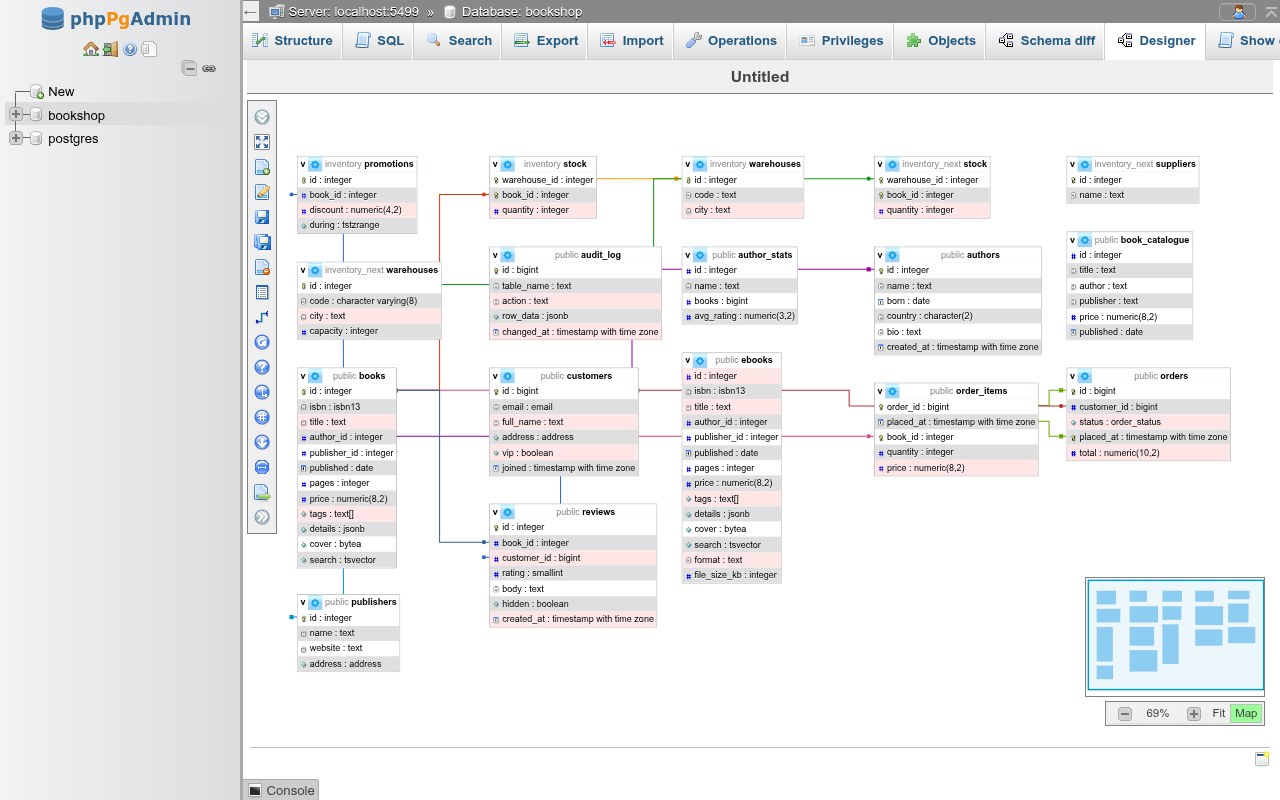
Each box's header shows the schema in grey and the name; the rows are the columns with their types. The icon in front of a column tells its kind: a key for a primary key column, and others for numbers, text and dates. A pink row is a NOT NULL column that is not part of the primary key. Hover over the header to see the table's comment. The gear icon opens the table's Structure.
Partitions are left out (their partitioned table stands for them), and so are pg_catalog, information_schema and the other pg_* schemas. A foreign key is drawn as a line from the column to the referenced column, a dot at the referencing end and a square at the referenced one, one colour per foreign key in turn. Hover over a line to see the constraint's name and columns.
The side menu

From top to bottom:
| Button | What it does |
|---|---|
| Show/Hide tables list | the list of all relations on the right, with a filter box and All tables; untick a relation to take its box off the diagram, tick it to put it back in the middle of the view |
| View in fullscreen / Exit fullscreen | the Designer alone on the screen (the browser's fullscreen) |
| New page | a new, untitled layout of every relation in columns |
| Open page | the saved pages of this database; click one to load it |
| Save page | saves the current page; an untitled one asks for a name first |
| Save page as | saves under a new name (a page of that name is replaced) |
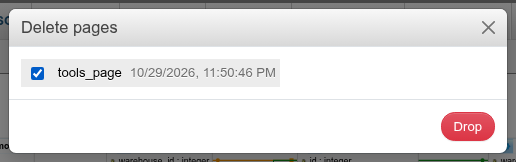
| Delete pages | tick saved pages and click Drop |
| Create table | opens the create-table page of public (or the first schema) |
| Create relationship | see Relationships |
| Reload | reads the diagram again from the database, keeping the layout; tables created since are added to the right of the others |
| Help | the mouse and keyboard controls |
| Angular links / Direct links | lines with right angles, or straight |
| Snap to grid | shows a dotted grid; dragged boxes snap to it (10 px) |
| Small/Big All | folds every box to its header, or unfolds them all |
| Toggle relationship lines | hides or shows the lines |
| Export schema | see Export |
| Build Query | the SELECT of the selected boxes (all of them when none is selected), see Build Query |
| Move Menu | moves the side menu to the right edge and back |
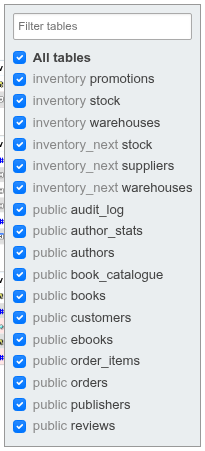
New tables and Reload
Reload refreshes the columns and relationships of the boxes shown and adds the tables created since the Designer read the database (here or elsewhere), in columns to the right of the others. A table you took off the page stays off.
The table menu
Right-click a box's header for pgAdmin ERD's table actions:
| Item | What it does |
|---|---|
| Edit table | opens the table's structure page |
| Clone table… | asks for a New table name and Structure only or Structure and data, then copies the table into its schema (the table list's Copy table, with its constraints); the copy appears on the page |
| Add/Edit note… | a note on the table, shown as a comment icon in its header (hover to read it, click to edit). Notes are kept in the page, so save the page to keep them; an empty note is taken away |
| One-to-many link… | the relationship dialog with the box's table as the foreign-key side: pick its column, the referenced table and column (its primary key to begin with), and the actions, then OK or Preview SQL |
| Many-to-many link… | pgAdmin ERD's many-to-many link: pick the Referenced table and the new table's name (orders_books to begin with); the new table holds both tables' primary key columns (orders_id, books_id) as its primary key, each a foreign key to its table |
Tables only: views and foreign tables offer Edit table and the note.
Build Query
Build Query writes the SELECT of the selected boxes, or of every box on the page when none is selected, as phpMyAdmin's Designer does: each table's columns (public.orders.*), the tables in the order of the page, each after the first LEFT JOINed on a foreign key it has with one before it (in either direction), or added after a comma when it has none. Open in the SQL page puts it in the query box there. For column-by-column choices and criteria, use the database's Query tab.
Moving around
| Action | Mouse | Keyboard |
|---|---|---|
| Move a box | drag it from anywhere on it | arrows move the selection (Shift for bigger steps) |
| Fold one box | click the v in its header (> unfolds) | |
| Select | click a box; Shift or Ctrl+click adds or removes; Shift+drag on the background draws a rectangle | Ctrl+A selects all, Escape clears |
| Pan | drag the background; or hold Space or the middle button and drag anywhere; the wheel scrolls (Shift+wheel sideways) | |
| Zoom | Ctrl+wheel or a pinch, around the pointer | + and −, 0 for 100 %, 1 fits the diagram (or the selection) |
The controls at the bottom right zoom out, show the zoom (click it for 100 %), zoom in, Fit the diagram on screen, and show or hide the Map, a minimap where a click or drag moves the view.
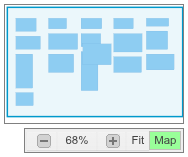
The keyboard works while the Designer has the focus: click its background first. The Designer opens fitted to the screen. A * after the page name means the layout has changed since it was saved.
Pages
A page keeps the layout: where each box is, which are folded, which relations are shown, the grid, line style and line switches, and the zoom and position of the view.
Click Save page as, type a Page name (up to 100 characters) and save. The name shows above the diagram.
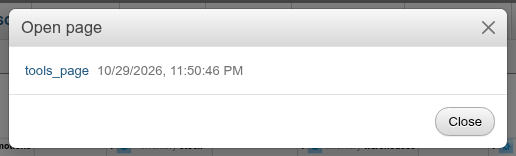
Open page lists the saved pages with the time they were saved; click a name to load it.
Delete pages: tick one or more and click Drop.
Pages are kept in phpPgAdmin's own SQLite storage (designer_pages), per role, server and database — not in the database, unlike phpMyAdmin's pma__pdf_pages, so creating pages needs no write access to the database. A relation dropped since the page was saved is left out when the page is opened.
Drop is the confirmation
As in phpMyAdmin, ticking pages and clicking Drop in Delete pages deletes them without a second question. Deleting the page that is open keeps its layout on screen as an unsaved, untitled page.
Relationships
Create a relationship
Click Create relationship. The hint says Select referenced key.
Click the referenced column, usually a primary key (the pointer becomes a crosshair over columns). The hint changes to Select Foreign Key for tools_parent.id.
Click the referencing column in another box. A dialog shows the Foreign key, References, and ON DELETE and ON UPDATE (
NO ACTION,RESTRICT,CASCADE,SET NULL,SET DEFAULT).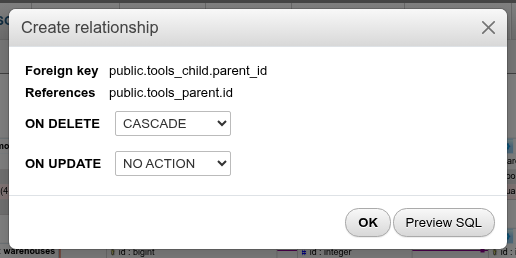
Preview SQL shows the statement; OK runs it:
ALTER TABLE public.tools_child ADD FOREIGN KEY (parent_id)
  REFERENCES public.tools_parent (id) ON UPDATE NO ACTION ON DELETE CASCADE;
The constraint gets PostgreSQL's default name (tools_child_parent_id_fkey). Click Create relationship again to leave without creating one.
One column at a time
The Designer creates single-column foreign keys. For a key over several columns, use the table's Indexes and constraints page. The referenced column needs a primary key or unique constraint, and the types must match; PostgreSQL's error is shown otherwise.
Drop a relationship
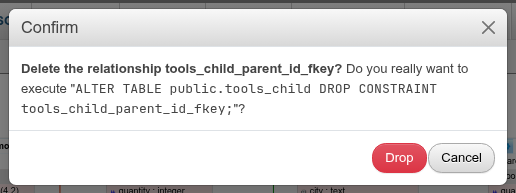
Click a relationship's line. A confirmation shows ALTER TABLE … DROP CONSTRAINT …;; Drop runs it.
Export
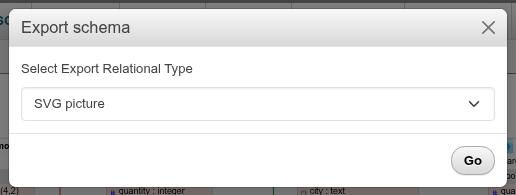
Export schema offers three formats for the boxes shown:
| Format | File |
|---|---|
| SVG picture | the diagram as drawn, with its boxes and lines (bookshop-Untitled.svg) |
| PNG picture | the same, rendered to PNG |
| SQL (the tables' CREATE statements) | the DDL of each relation shown, as its SQL tab writes it (indexes, row security policies, triggers and rules included), the referenced tables before those that reference them |
The file is named after the database and the page (bookshop-tools_page.png).
Differences from phpMyAdmin
- Tables of every schema are in one diagram; the schema name is shown in each header.
- Build Query writes the joined
SELECTbut has no query-by-example options panel (use the Query tab); there is no display-field choice. - Pages are stored by phpPgAdmin, not in a configuration storage database.