
Table search
The Search tab of a table or view is phpMyAdmin's "query by example": pick an operator and a value for any of the columns, and phpPgAdmin builds the SELECT and shows the matching rows in the results grid under the form. The conditions of all filled-in columns are combined with AND.
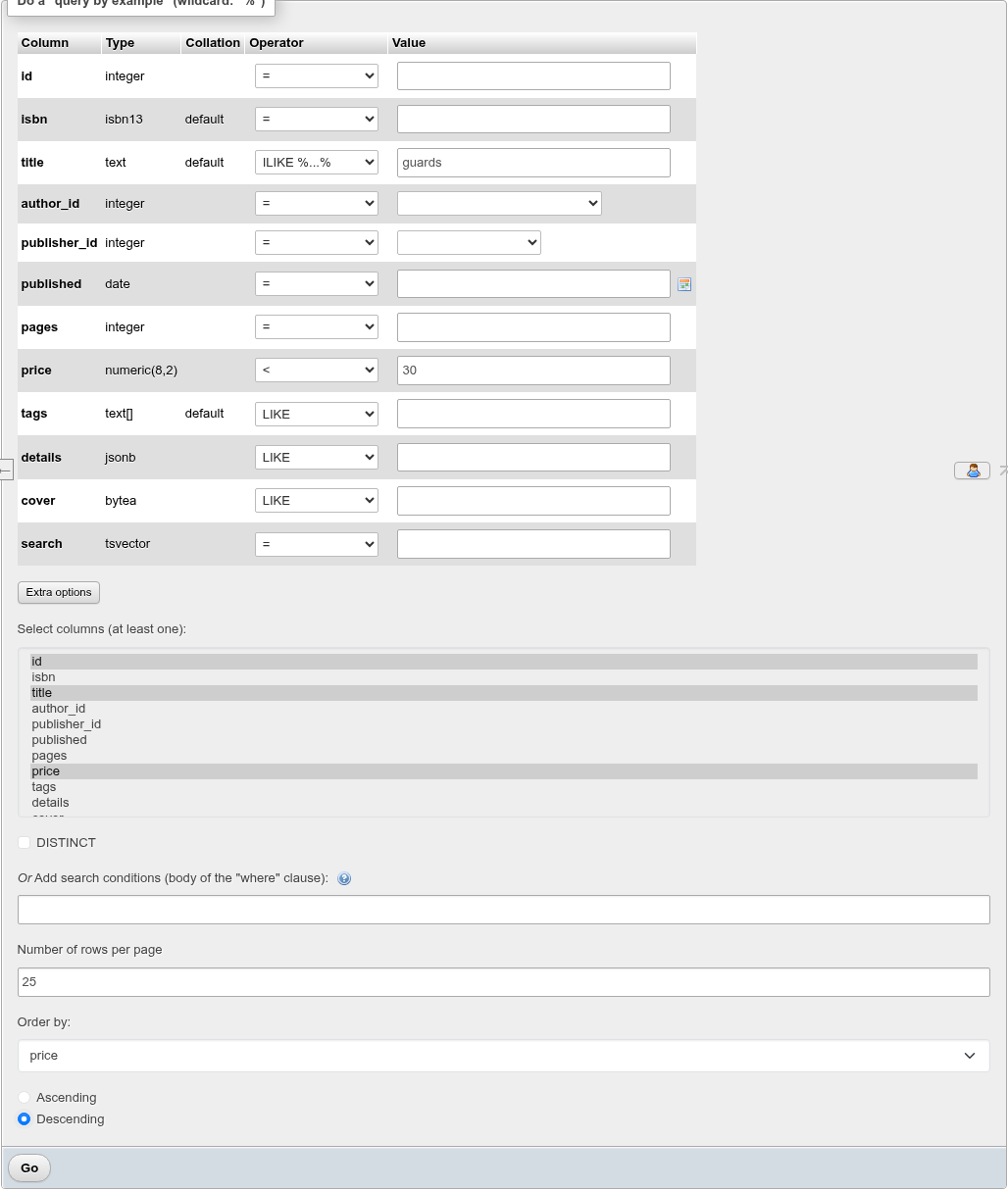
Search a table
- Open the table's Search tab.
- For each column to filter on, pick an Operator and type a Value. Columns with an empty value are ignored, except for the operators that take no value (
IS NULL,= ''…). - Optionally open Extra options (below).
- Click Go.
The rows appear under the form, with the generated statement above them:
SELECT "id", "title", "price" FROM "public"."books" WHERE "title" ILIKE '%guards%' AND "price" < '30' ORDER BY "price" DESC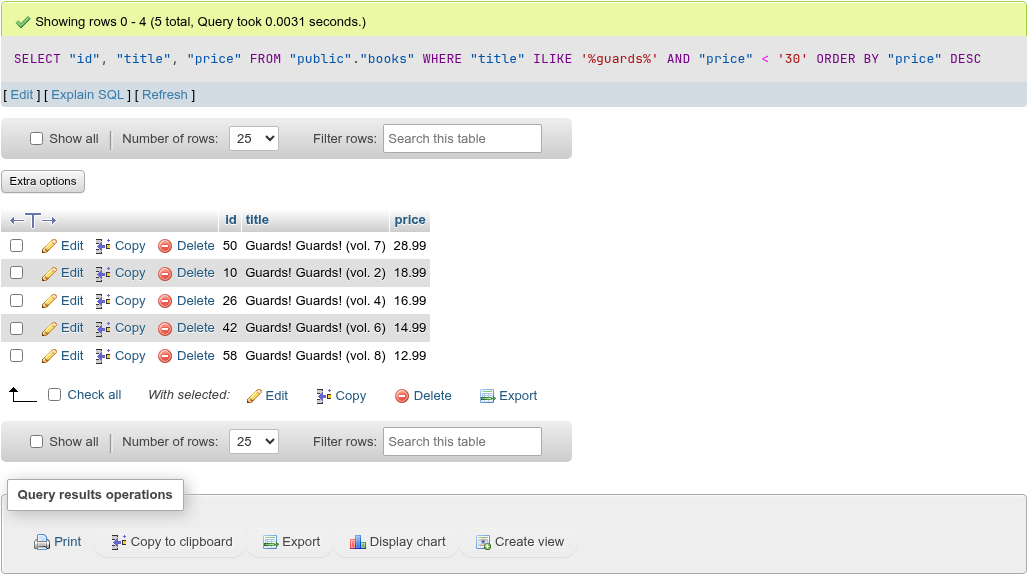
The grid pages, sorts and edits as on Browse: when the result includes the primary key, rows can be edited, copied and deleted. The message's Edit and Explain SQL links open the table's SQL tab with the statement. The other two sub-tabs, Zoom search and Find and replace, are described below.
Operators
The list depends on the column's type:
| Column type | Operators |
|---|---|
Text (text, varchar, char, name, citext, xml), json/jsonb, bytea, arrays | LIKE, LIKE %...%, NOT LIKE, NOT LIKE %...%, ILIKE, ILIKE %...%, NOT ILIKE, =, !=, REGEXP, REGEXP ^...$, NOT REGEXP, = '', != '', IN (...), NOT IN (...), BETWEEN, NOT BETWEEN |
Numbers, dates and times, boolean, domains, ranges and other types | =, >, >=, <, <=, !=, LIKE, LIKE %...%, NOT LIKE, NOT LIKE %...%, IN (...), NOT IN (...), BETWEEN, NOT BETWEEN |
uuid | =, !=, the four LIKE forms, IN (...), NOT IN (...) |
| Enum | =, != |
| Any nullable column | also IS NULL, IS NOT NULL |
How they are written:
| Operator | SQL |
|---|---|
LIKE, ILIKE | "col" LIKE 'value' — type % and _ yourself |
LIKE %...%, ILIKE %...%, NOT LIKE %...% | "col" ILIKE '%value%' |
ILIKE, NOT ILIKE | Case-insensitive LIKE, PostgreSQL's own |
REGEXP, NOT REGEXP | "col" ~ 'value', "col" !~ 'value' — POSIX regular expressions, case-sensitive |
REGEXP ^...$ | "col" ~ '^value$' |
IN (...), NOT IN (...) | The value split on commas: 1, 2, 3 → IN ('1', '2', '3'). An empty item adds OR "col" IS NULL |
BETWEEN, NOT BETWEEN | Two values separated by a comma: 1960-01-01, 1965-12-31 |
= '', != '' | Compares with the empty string; no value box |
LIKE and REGEXP need text
PostgreSQL has no implicit cast to text for LIKE or ~. LIKE on a number or date column ("pages" LIKE '%5%') and REGEXP on an array or jsonb column fail with operator does not exist: integer ~~ unknown. Use comparisons for numbers and dates, or write the condition yourself in the custom WHERE box: pages::text LIKE '%5%', 'sci-fi' = ANY (tags), details->>'language' = 'en'.
Case sensitivity
Unlike MySQL with its usual _ci collations, LIKE, = and REGEXP are case-sensitive in PostgreSQL. Use ILIKE/ILIKE %...% for a case-insensitive match. A column with a nondeterministic (case-insensitive ICU) collation, such as customers.full_name, matches case-insensitively with = and LIKE (PostgreSQL 18 and later; older servers reject LIKE on it) but rejects ILIKE and the regular expression operators.
Value boxes
A foreign key column offers the referenced values in a list (up to 100; beyond that a text box with the Browse foreign values window), an enum its labels, a date or timestamp column the date picker. Integer and numeric columns are checked for numbers before the form is sent — every item of an IN or BETWEEN list too — unless the operator is one of the LIKE forms. Values are always sent as quoted literals ('30'), which PostgreSQL casts to the column's type.
Extra options
| Option | What it does |
|---|---|
| Select columns (at least one): | The columns to show. All by default (SELECT *). Leave out the primary key and the rows can no longer be edited. |
| DISTINCT | SELECT DISTINCT …; the result is then read-only. |
| Or Add search conditions (body of the "where" clause): | Your own WHERE body, for example price > 37 AND tags @> '{sci-fi}'. When it is filled in, the per-column conditions above are ignored. |
| Number of rows per page | The page size of the results; defaults to the Number of rows setting. |
| Order by: with Ascending / Descending | Adds ORDER BY "col" ASC/DESC. A click on a column heading of the results then re-sorts on top of it. |
INFO
The options and criteria are kept only while you stay on the page. Use Edit on the result to keep the statement on the SQL tab, and bookmark it there.
Zoom search
The Zoom search sub-tab plots the rows against two columns, one point per row, as phpMyAdmin's does.
- In the first two rows of the Column table pick the columns for the X and the Y axis, with an operator and a value for each if you want to filter on them. Under Additional search criteria two more columns can filter the rows without being plotted. The operators and value boxes are those of Table search.
- Use this column to label each point picks the text shown when the pointer is over a point; it starts on the table's first text column. Maximum rows to plot (500) becomes the
LIMIT. - Click Go. Both columns must be chosen and different; otherwise Select two columns or Select two different columns is shown.
Numbers plot by value; date, timestamp and time columns on a time axis (a time of day on 1970-01-01). Rows whose X or Y value is NULL or not a number are left out. The form folds away behind Show search criteria, and Browse/Edit the points shows the plot:
- Drag over the plot to zoom into the box; Reset zoom shows every point again.
- Drag the box's bottom right corner to resize the plot. How to use lists these hints.
- Click a point to open Data point content: every column of the row with its Null box and value. Save writes the changed values with an
UPDATE … WHEREon the primary key, shows the statement above the plot and moves the point. A table without a primary key can be plotted but its points cannot be opened.
Find and replace
The Find and replace sub-tab changes text in one column of every row that contains it, as phpMyAdmin's does.
- Type the text in Find: and its replacement in Replace with: (empty removes it).
- Pick the Column:. Only text columns are offered (
text,varchar,char,citext,name). - Tick Use regular expression to treat Find: as a PostgreSQL (POSIX) regular expression.
- Click Go. The form folds away behind Show find and replace criteria, and Find and replace - preview lists each distinct value found, how many rows hold it (Count), the Original string and the Replaced string.
- Click Replace and confirm the statement. The message shows how many rows were changed and the
UPDATEthat ran; it is also kept in the query history.
The statements:
| Plain text | Regular expression | |
|---|---|---|
| Rows changed | WHERE strpos("col", 'find') > 0 | WHERE "col" ~ 'find' |
| New value | replace("col", 'find', 'with') | regexp_replace("col", 'find', 'with', 'g') |
A plain search is case-sensitive (phpMyAdmin compares with a binary collation for the same reason). A regular expression replaces every match in the value; refer to a group in Replace with: as \1, \2 …, for example find ^(\w+), (\w+)$ and replace with \2 \1. An invalid expression shows PostgreSQL's error instead of the preview.